
Taking the Student Perspective
In order to view your profile and bwJupyter in general from the perspective of a student, you can change your identity. This is not a simple role simulation. When you change your identity, you will receive a separate JupyterHub account with the username stud-<your JupyterHub username> for the corresponding period. All changes you make with the student account (e.g. creating notebooks, creating groups, adding collaborators) are persistent and will not be reset when you end the identity change.
Start Impersonation
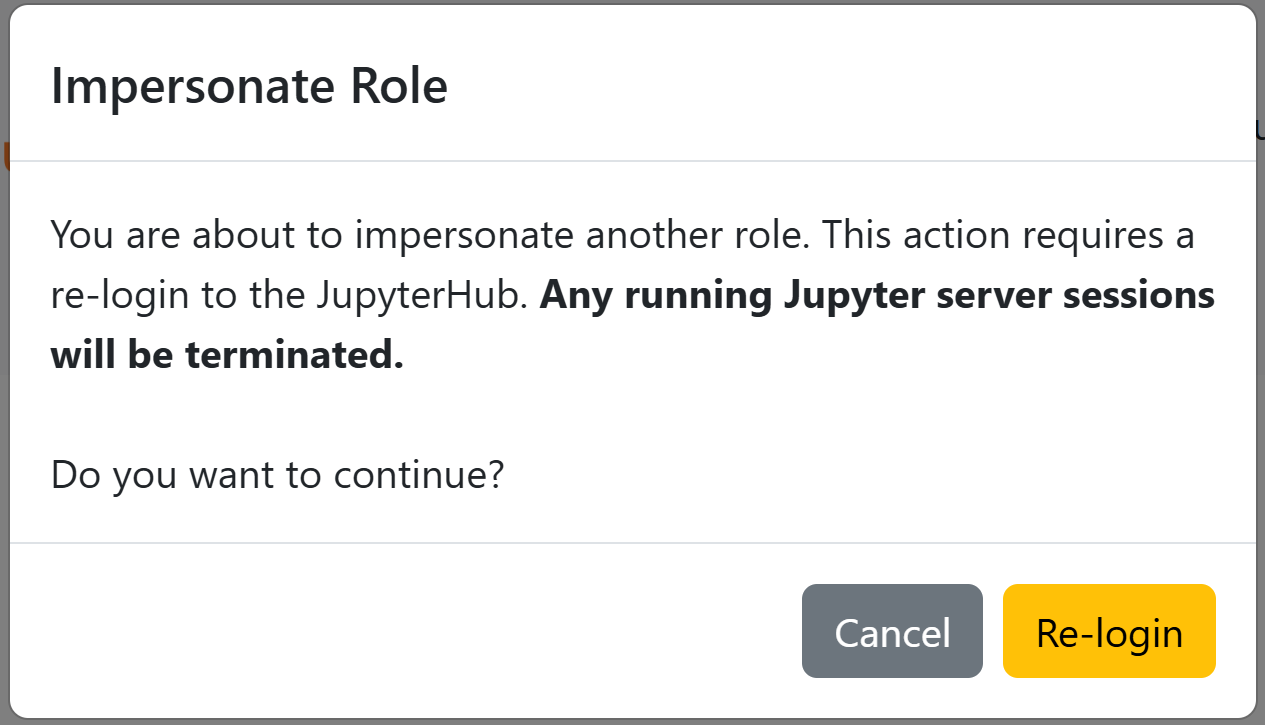
Lecturers can start the impersonation process via the " Impersonate student" button in the navigation bar. Once the change has been confirmed, you may have to log in again with your university account via bwIDM.
After logging in, you will be redirected to bwJupyter. In the navigation bar you will now see the role "Student" with the note "Temporary role". With the new JupyterHub account stud-<your JupyterHub username> you can now use bwJupyter from the perspective of a student.
Note: If you have started the identity change for the first time, you will not see any profiles under "Shared Profiles" in the profile selection, although you may have created profiles as a lecturer. For the profile to appear in the list, you must add the profile via the shared profile link with your student account - just like the students.
Tip: You can use a second, separate browser or an incognito tab so that you do not always have to switch accounts (e.g. to test the group feature). Open bwJupyter in both browsers or tabs and carry out the identity change in the second browser or tab. This allows you to view both views simultaneously.
Exit Impersonation
Similar to starting, the impersonation can be canceled via the button " Impersonate lecturer" in the navigation bar. After logging in again, you will be assigned the "Lecturer" role again.